Frequently Asked Question
How to Change your Zuern Account Password
Last Updated 4 years ago
Option 1 (Preferred): From a Zuern Computer connected to our network (Local or VPN)
Press CTRL-ALT-DEL and select "Change a Password"
Option 2: Using Microsoft "My Account" portal. -> https://myaccount.microsoft.com/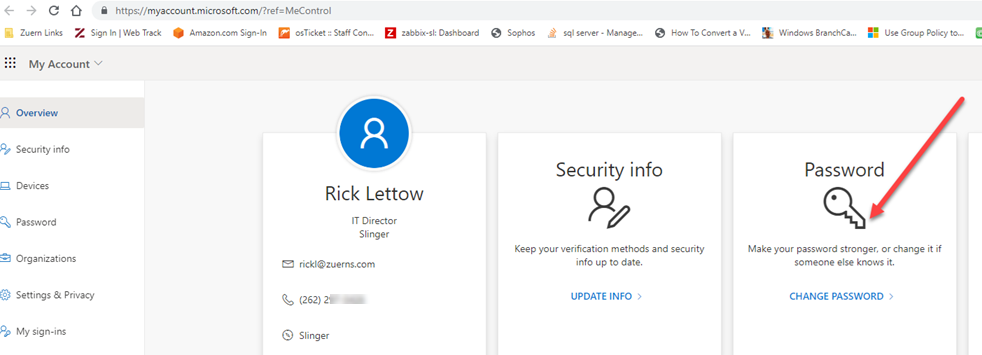
Option 3: Using Microsoft Password Self-Reset (Requires registration) -> https://aka.ms/sspr
IMPORTANT STEPS: AFTER A PASSWORD CHANGE!
#1 Updating your Outlook Email Password -> Knowledge Base
#2 (VPN Users only) Update your VPN Password after a password change -> Knowledge Base
#3 (Email on your phone) Update your Mobile Phone email password (If Account Setup)
#4 (OwnCloud Users) Owncloud will prompt for your new password.
NOTE: OwnCloud may require up to 15 minutes for password changes to take affect.
#5 Update Zoom/Exchange Integration with your new password.
Press CTRL-ALT-DEL and select "Change a Password"
Option 2: Using Microsoft "My Account" portal. -> https://myaccount.microsoft.com/
Option 3: Using Microsoft Password Self-Reset (Requires registration) -> https://aka.ms/sspr
IMPORTANT STEPS: AFTER A PASSWORD CHANGE!
#1 Updating your Outlook Email Password -> Knowledge Base
#2 (VPN Users only) Update your VPN Password after a password change -> Knowledge Base
#3 (Email on your phone) Update your Mobile Phone email password (If Account Setup)
#4 (OwnCloud Users) Owncloud will prompt for your new password.
NOTE: OwnCloud may require up to 15 minutes for password changes to take affect.
#5 Update Zoom/Exchange Integration with your new password.