Frequently Asked Question
How do I setup Zuern on my Apple iPhone
Last Updated 4 years ago
- Open your iPhone or iPad's Settings.
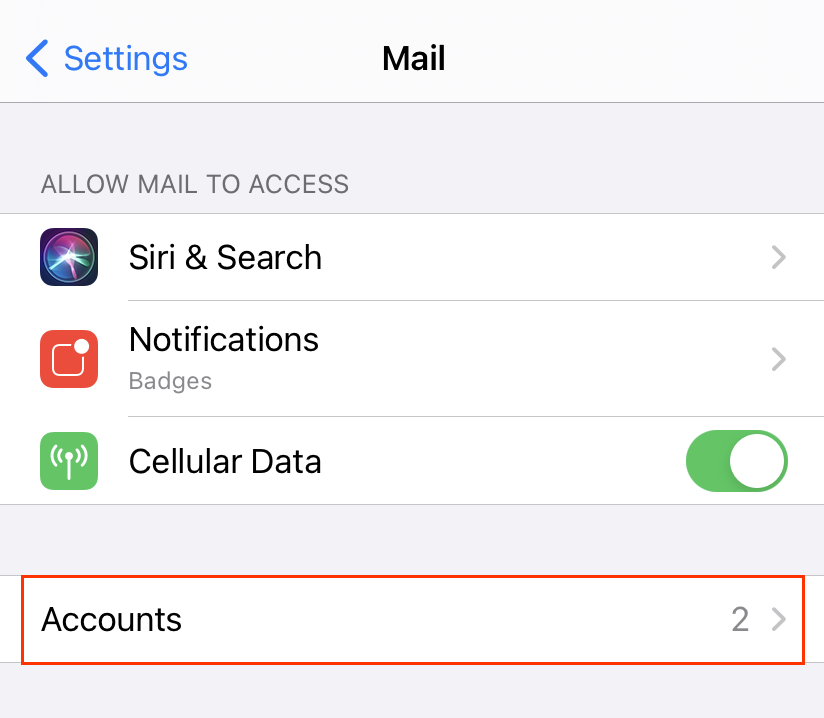
- Tap Mail > Accounts. (Depending on your iOS version, you might need to tap Passwords & Accounts.)
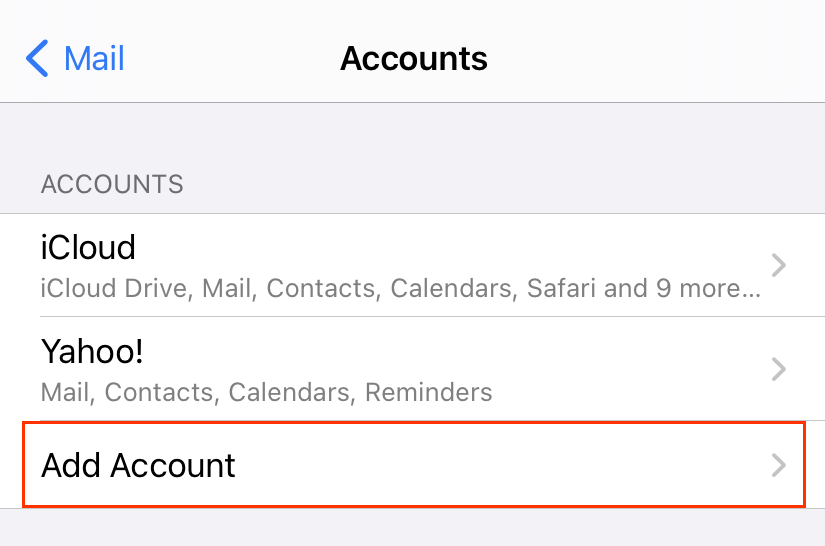
- Tap Add Account.
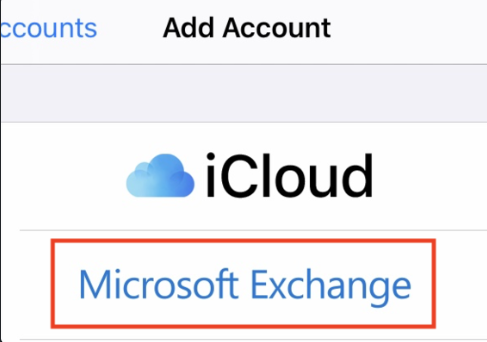
- Tap Microsoft Exchange.
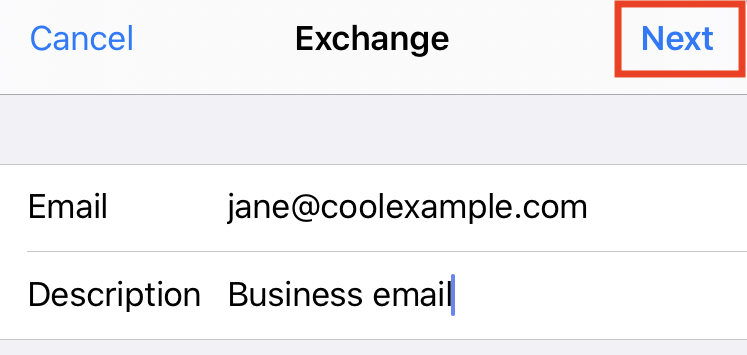
- Enter your Email and a short Description (like your company's name or email type), and then tap Next.
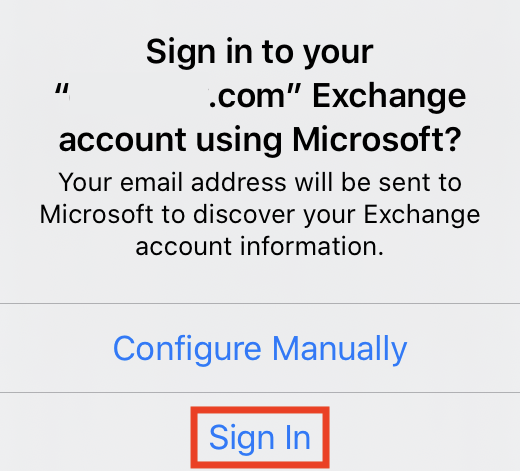
- Tap Sign In to confirm you want to use your Microsoft Exchange account.
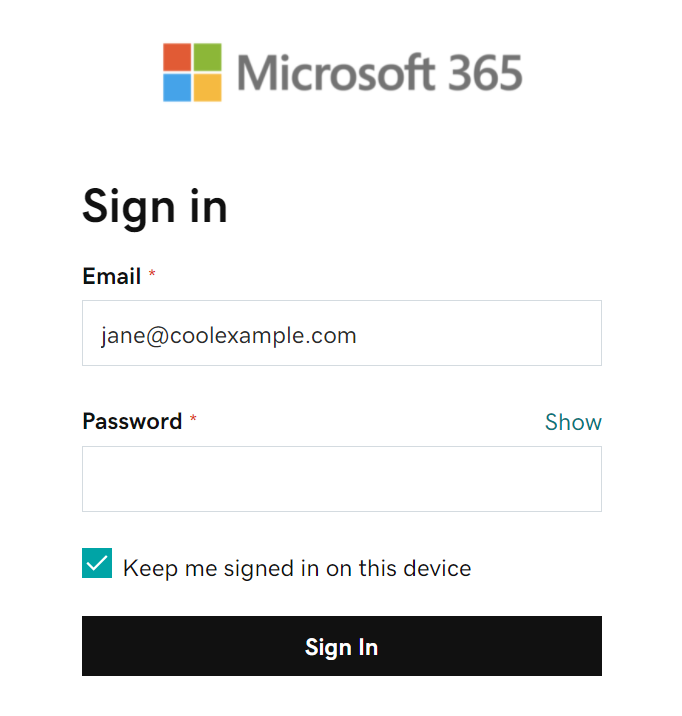
- Enter your Password and tap Sign In. (You might need to select your account type as Work or school, not Personal, to continue.)
- If your admin enabled multi-factor authentication (MFA), verify your account or set up the Authenticator app.
- Tap Next. You might be asked to select Consent on behalf of your organization. This allows Microsoft 365 and the Mail app to work together. Tap Accept.
- Tap Save. You can come back and update settings here at any point.

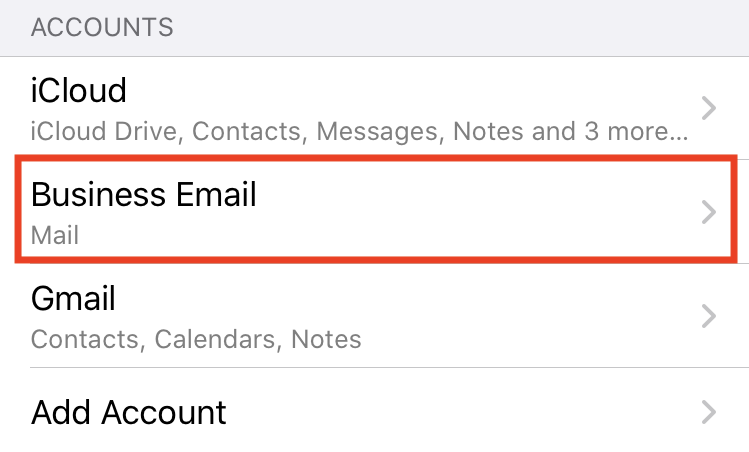
- That's it! You'll see your Microsoft 365 account under Accounts.
Note: If Microsoft can't find your account, you might be asked to enter your details manually:
• Email: Your Microsoft 365 email address
• Password: Your Microsoft 365 email password
• Server: outlook.office365.com (this is required)
• Domain: This can be left empty
• Username: Your Microsoft 365 email address