Frequently Asked Question
How do I setup Zuern Email on my Android Device
Last Updated 4 years ago
- Open your Android's Email app.
- If you're new to the Email app, continue to the next step.
- If you already have an account set up, tap
 Menu, then Settings, and then Add account.
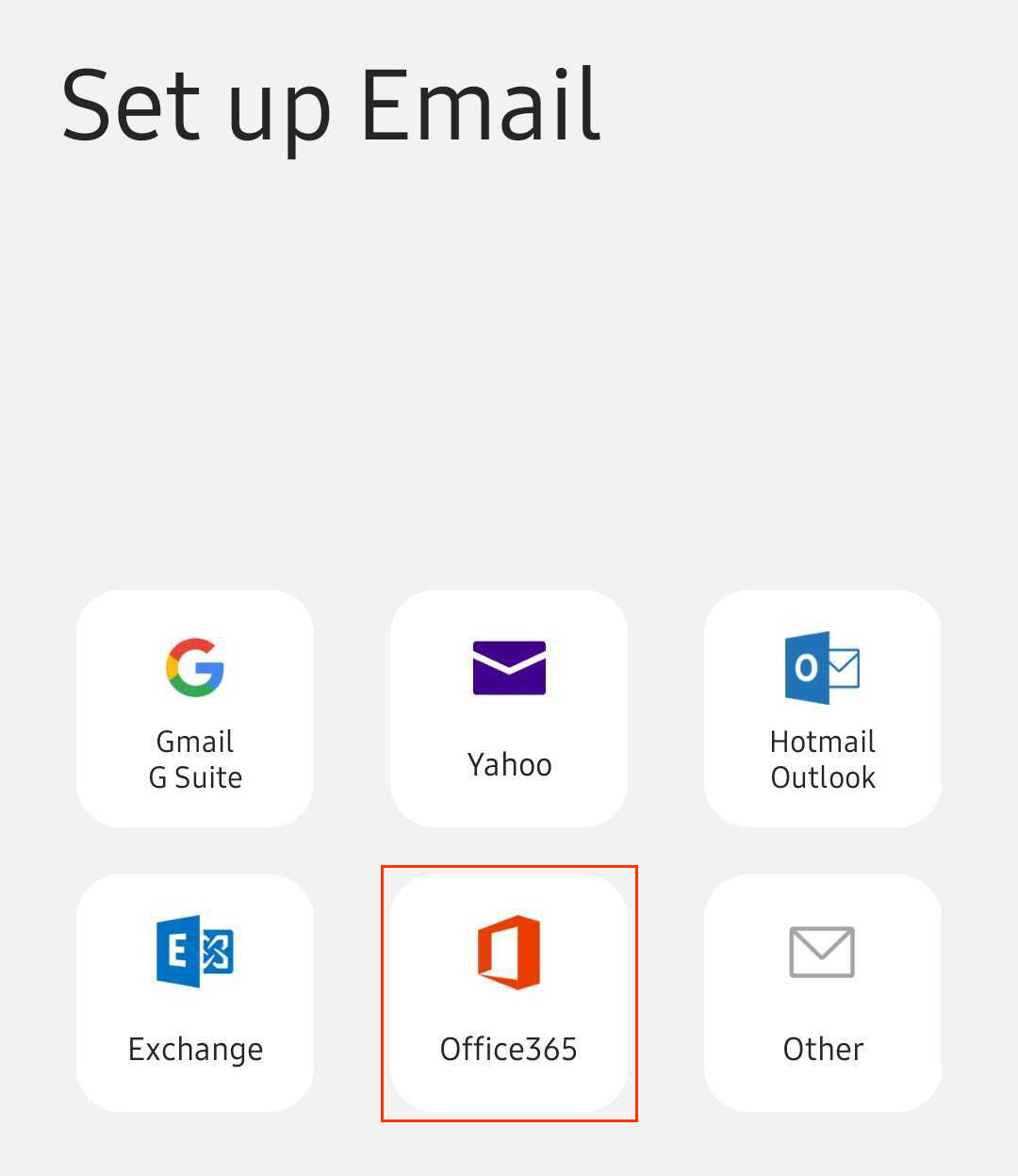
- Tap Office 365.
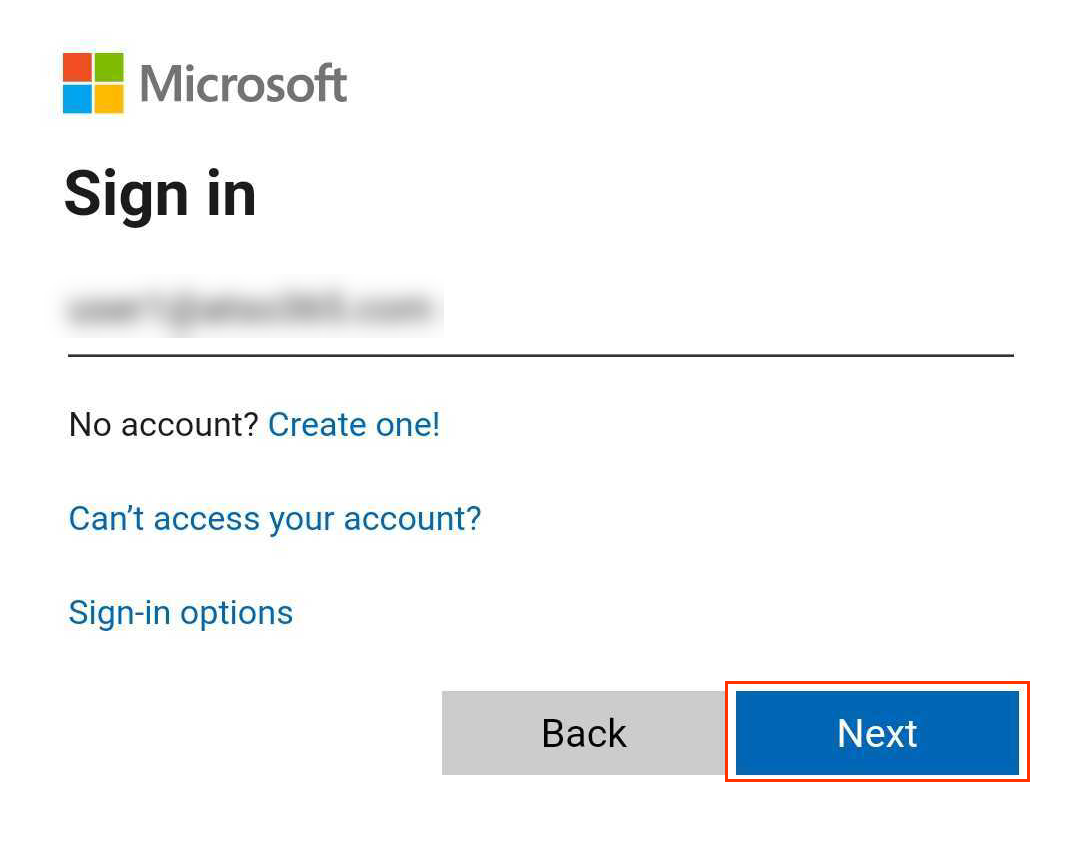
- Enter your Microsoft 365 email address, and then tap Next.
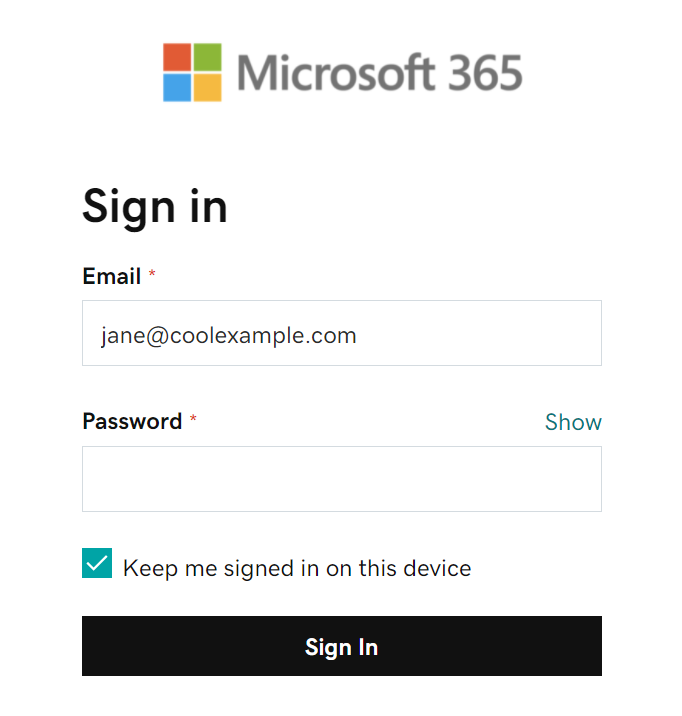
- Enter your Microsoft 365 Email and Password, and then tap Sign In. (You might need to choose your account type as Work or school, not Personal, to continue.)
- If your admin enabled multi-factor authentication (MFA), verify your account or set up the Authenticator app.
- The Email app automatically checks your settings. Under Manual setup, tap Done. You can come back and edit these settings at any point.
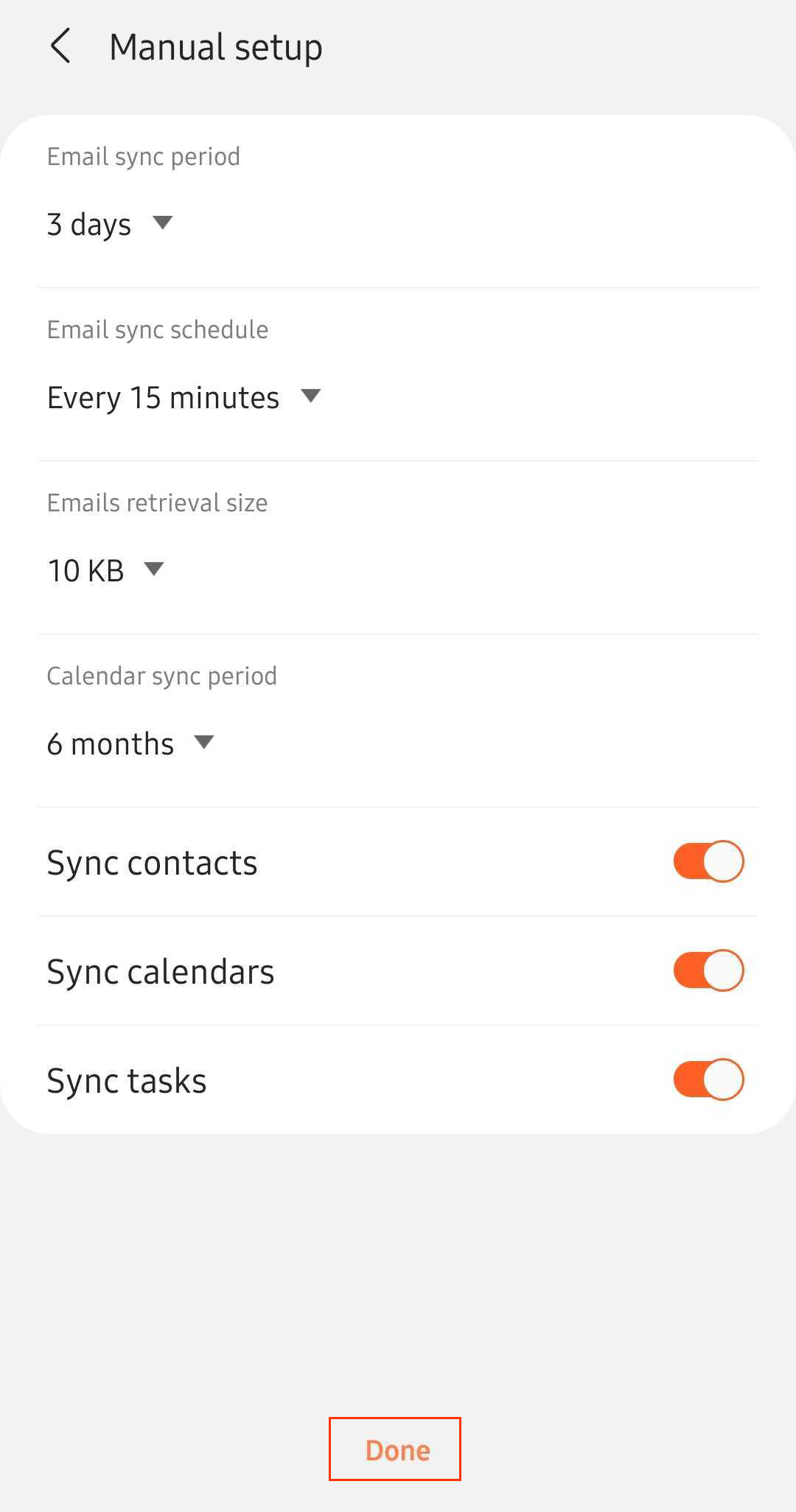
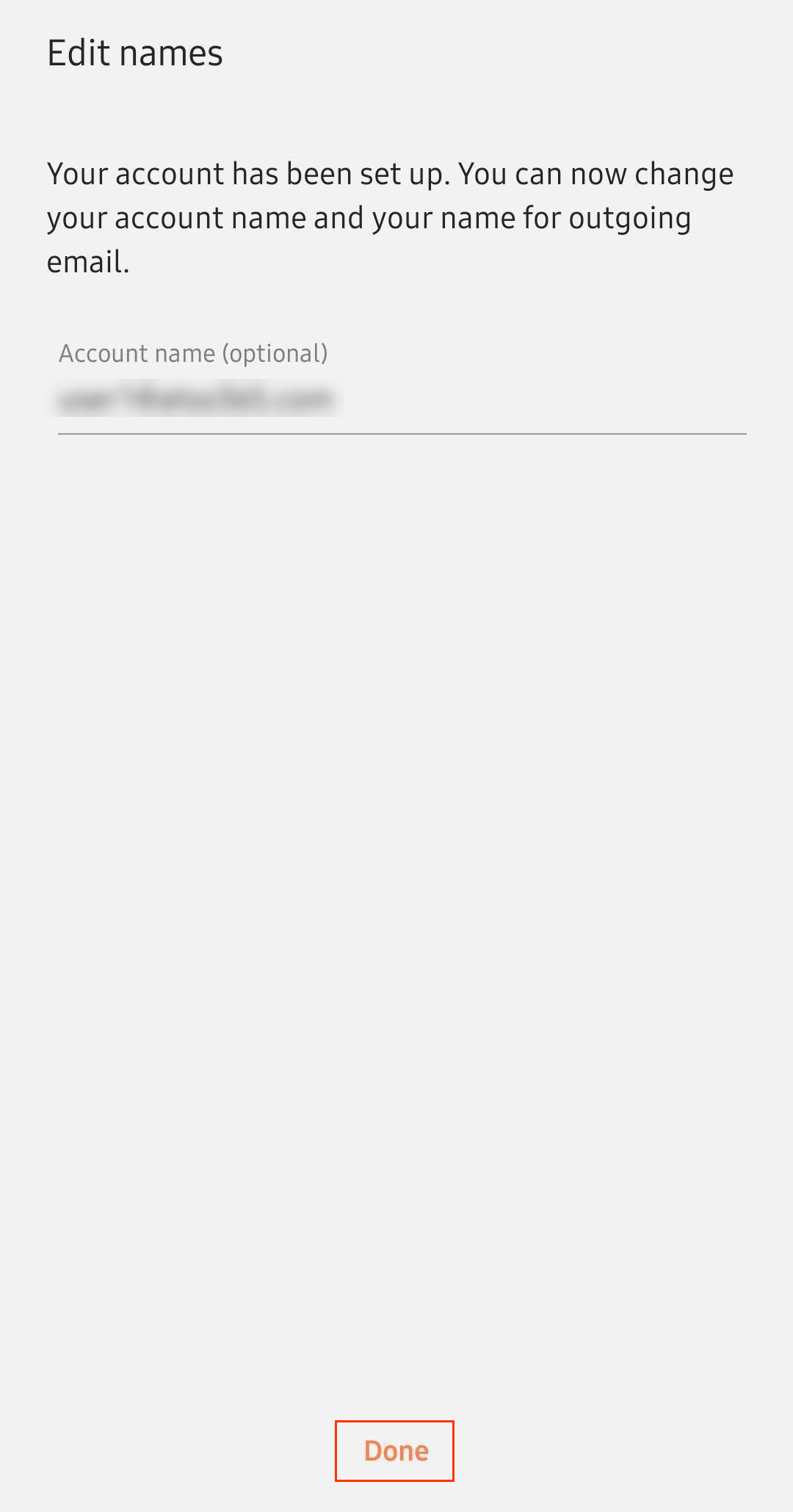
- Edit your Account name (if you want), and then tap Done. This name is visible to recipients when you send email, so you might want to use your business name here.
Note: If Microsoft can't find your account, you'll be asked to enter your details manually:
• Username: Your Microsoft 365 email address
• Password: Your Microsoft 365 email password
• Server: outlook.office365.com
• Domain\username: \[Microsoft 365 email address] (example: \owner@coolexample.com)
Microsoft 365 is now set up on your Samsung Email app and you'll see your inbox.